




YouTube transcript
Paste a YouTube link and get the video's captions as timestamped text. Search the words, click a line to jump the player, copy the text or download it as .txt, .srt or .vtt. No account.
Try it on youtube.com/watch?v=eWKY0OnPByg
How to get a YouTube transcript
- 1
Copy the video link
Any form works: youtube.com/watch?v=, youtu.be, a Shorts or embed link, or the 11-character id. A ?t= time in the link opens the player at that second.
- 2
Paste it and pick the caption language
Virev reads the caption track YouTube publishes for that video: the creator's own subtitles when they exist, else YouTube's auto-generated track. Nothing is transcribed by us, so the text is the same one YouTube shows.
- 3
Read, search, copy or download
Each line shows its start time; click it to play the video from there. Type a word to keep only the lines that contain it. Copy the text with or without timestamps, or download .txt, .srt or .vtt.
What each download holds
| File | Contents |
|---|---|
| .txt | The spoken text as one paragraph, for notes, a document or an AI chat. |
| .txt with timestamps | One line per caption with its start time in brackets, for quoting a moment. |
| .srt | SubRip subtitles: numbered cues with start and end times. Opens in VLC, Premiere, DaVinci Resolve and YouTube Studio. |
| .vtt | WebVTT subtitles for HTML5 video players and most captioning tools. |
What a result looks like
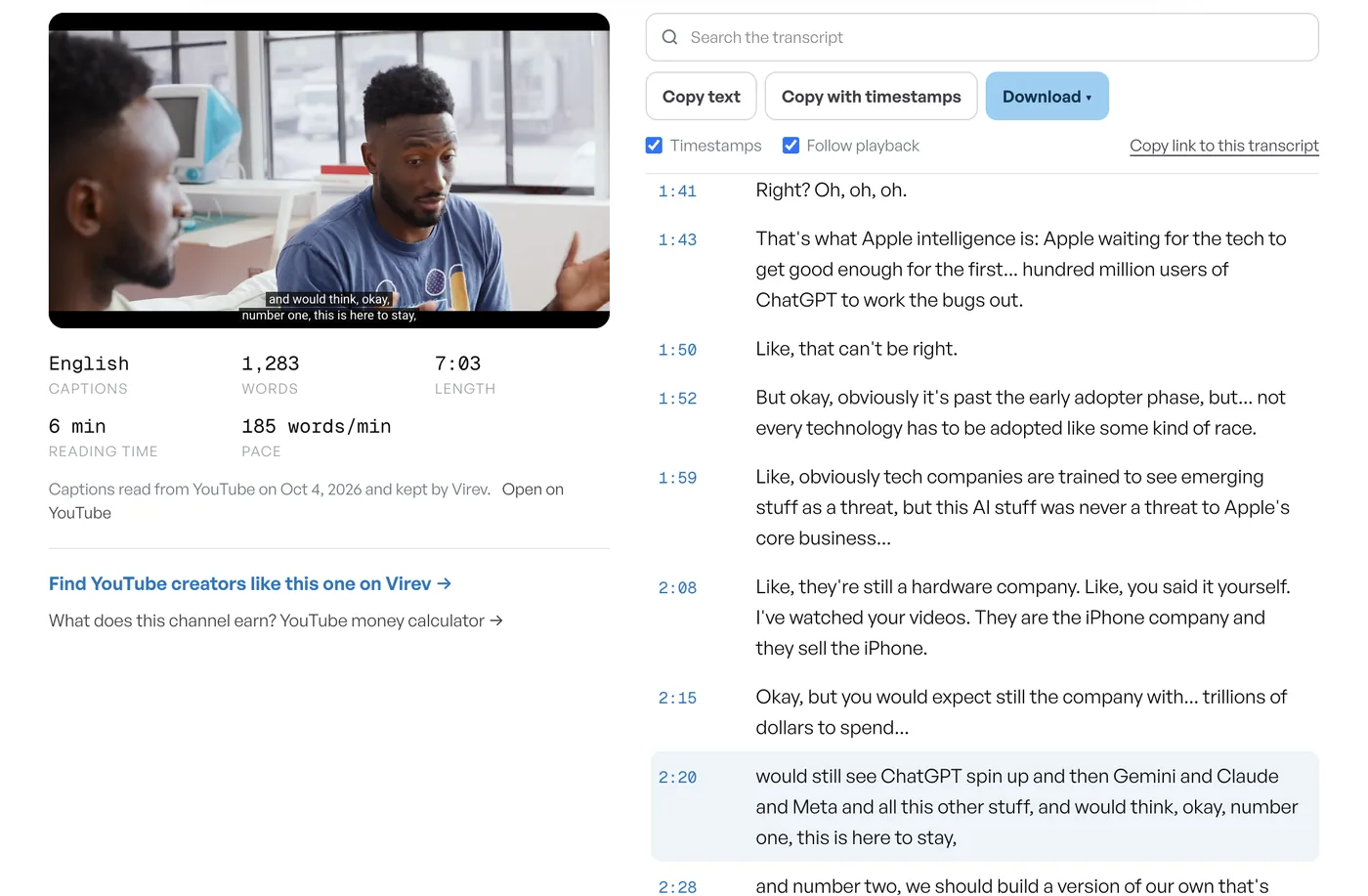
The reader for a 7-minute MKBHD video: 1,283 words of English captions in 61 lines, the player on the left, the search box and downloads above the text. The line at 2:20 is marked while the player speaks it; the caption burned into the video frame is the same sentence.
Where YouTube hides its own transcript
On youtube.com, open the video, expand the description under the title and click "Show transcript". A panel lists the captions with timestamps. It has no copy button, no search, no download and no file export; selecting the panel text by hand copies the timestamps between every line. This tool reads the same caption track and adds the parts the panel lacks.
Questions people ask
Do all YouTube videos have a transcript?
No. A transcript exists when the creator uploaded subtitles or when YouTube generated captions automatically, which it does for most videos with clear speech in a supported language. Music-only videos, very new uploads, some live streams and videos whose creator turned captions off have none, and this tool then says so.
Can I download the transcript as SRT or VTT?
Yes. The Download menu gives .txt (plain text), .txt with timestamps, .srt and .vtt. Each cue runs from its start time to the next line's start, which is how YouTube's own panel times them.
Is the transcript accurate?
It is exactly the caption track YouTube publishes. Creator-uploaded subtitles are usually exact; auto-generated captions misspell names and technical terms and skip punctuation. The caption name in the result ("English (auto-generated)") tells you which one you got.
Which languages work?
Any language the video has a caption track for. The selector lists 17 common ones; "en" also matches "en-US" and "en-GB". Translated tracks that YouTube renders on the fly are not caption tracks, so a Korean video with only Korean captions has no English transcript here.
Is there a limit?
A video Virev has read before opens without limit. New videos cost one read of YouTube each, and the free tool has a daily cap on those plus a limit of 6 new videos per hour per connection. Over the cap, the page says so and resets at midnight UTC.
Does it work for Shorts and live streams?
Shorts yes, when they have captions; paste the youtube.com/shorts link. A live stream gets captions only after it ends and YouTube processes the replay, usually within a few hours.
Related tools
Virev is not affiliated with YouTube or Google. The text is the caption track the creator or YouTube published for a public video and belongs to its creator; Virev keeps a copy of the captions it has read so the same video opens faster next time.