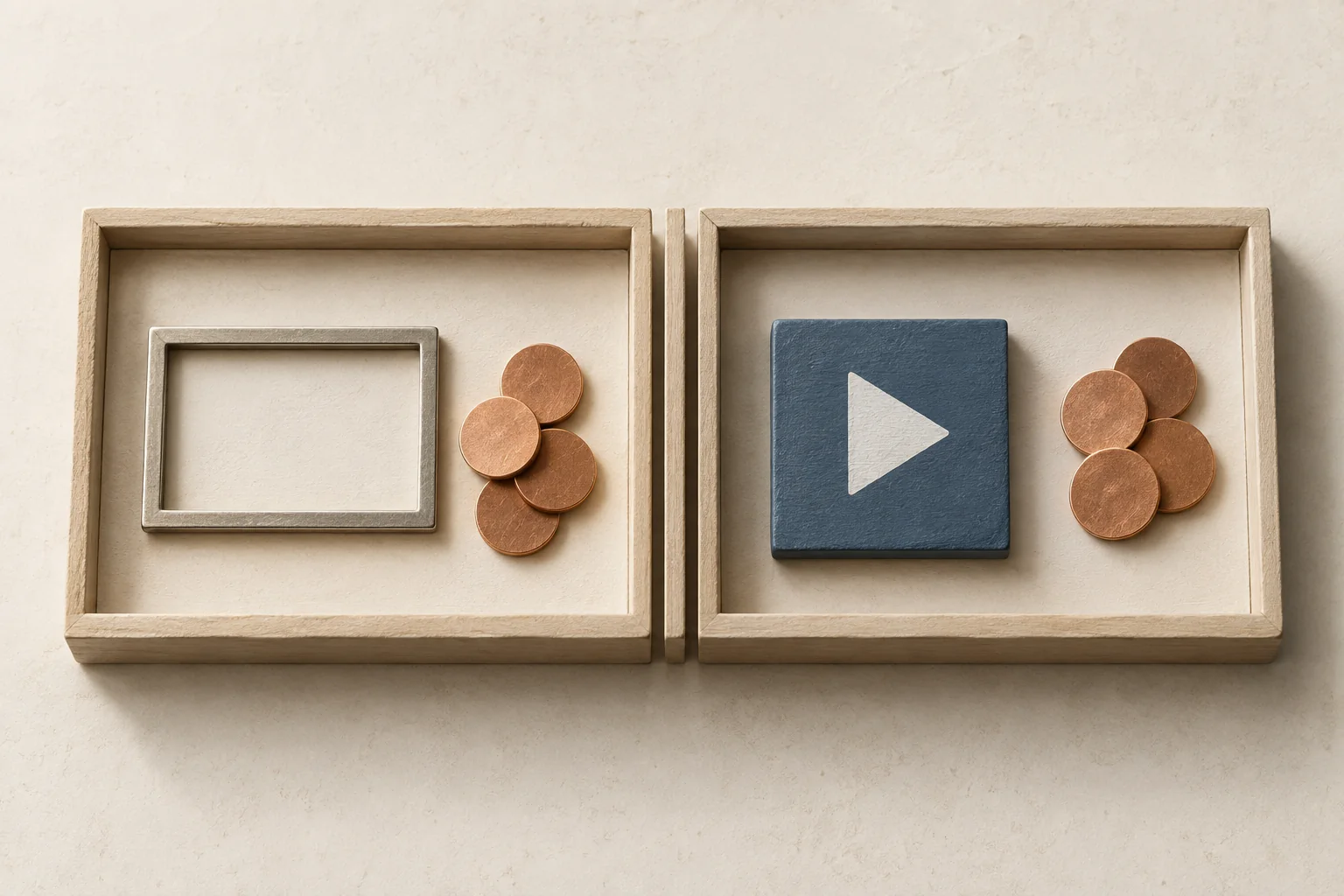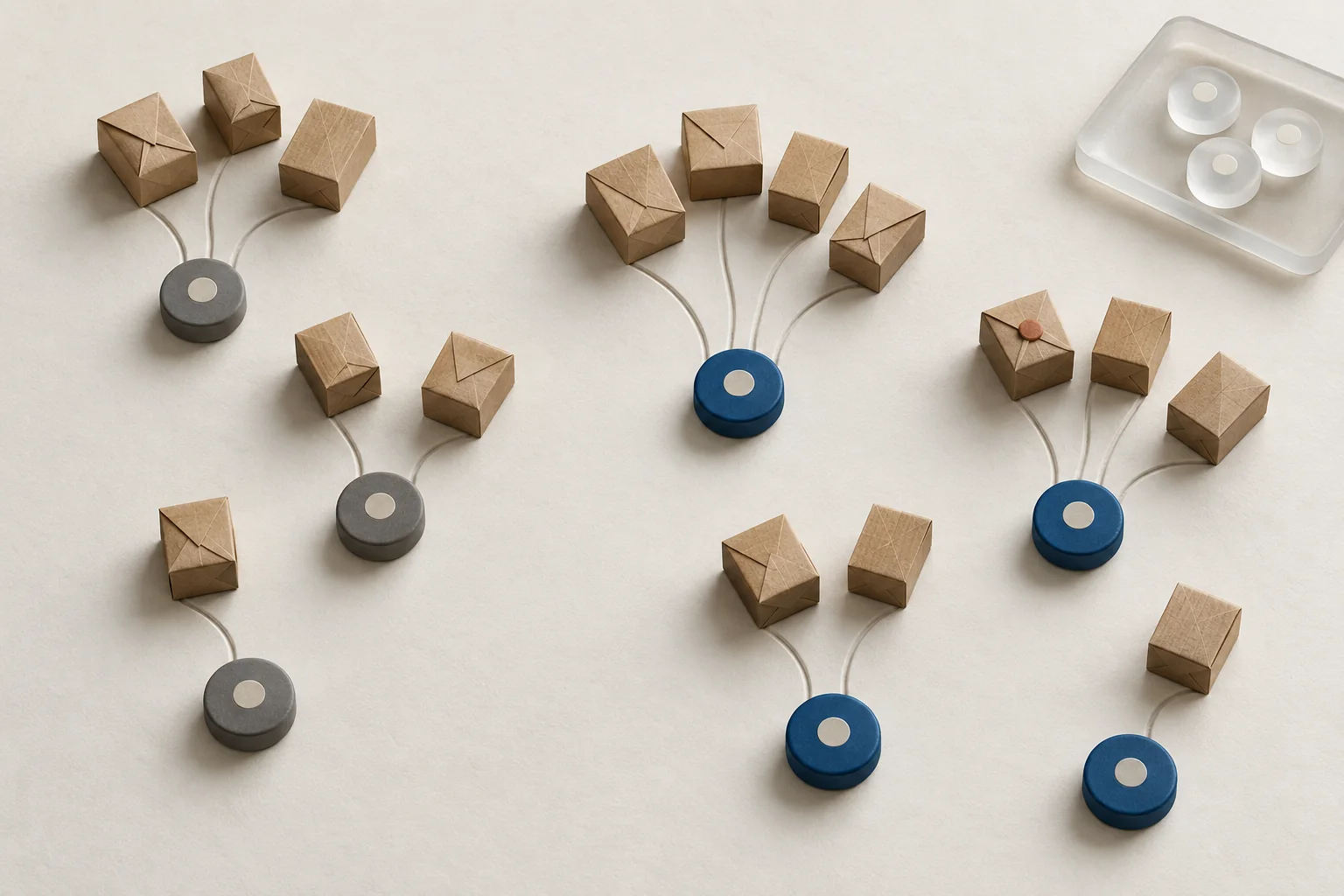




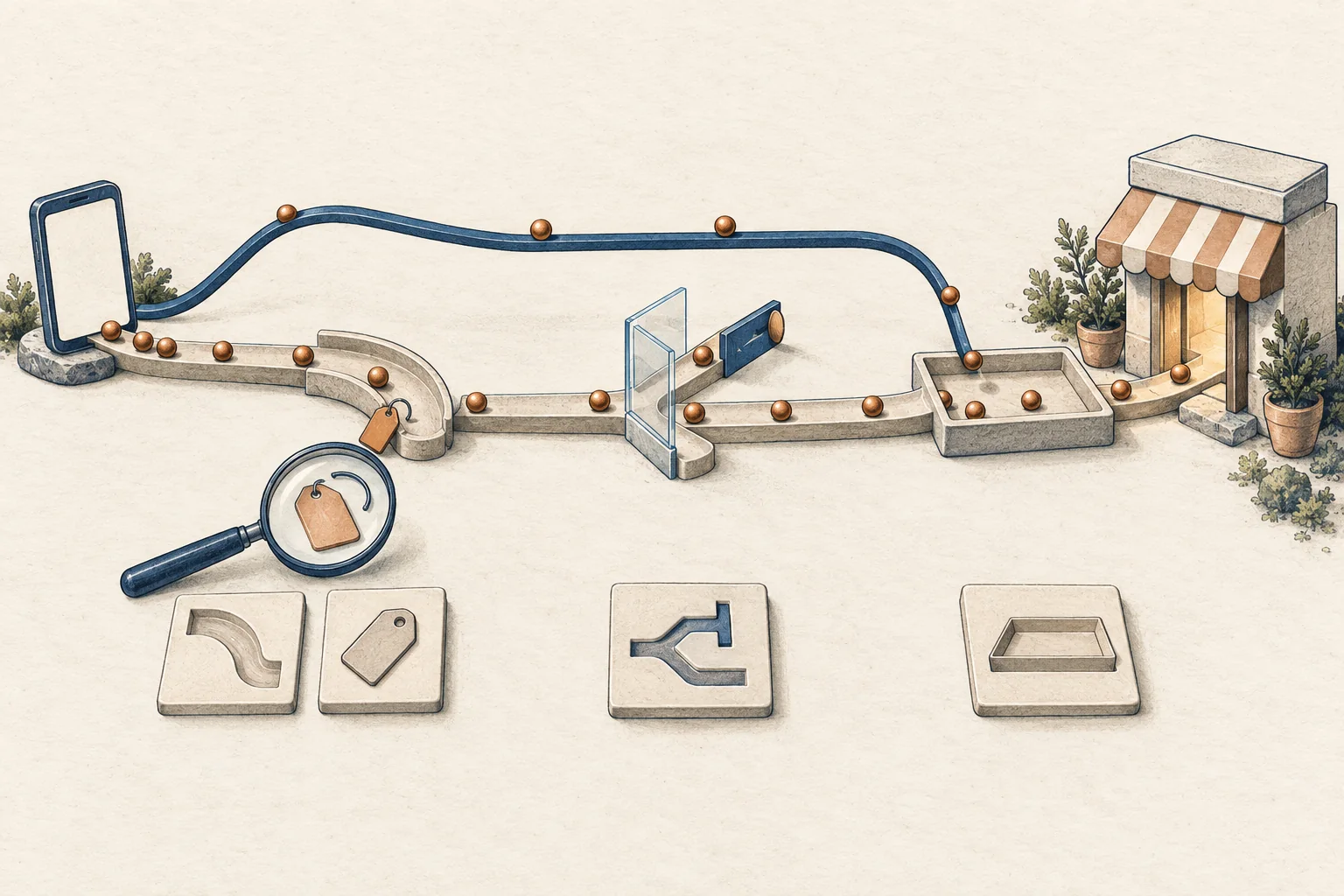
Creator clicks can exceed your analytics traffic because the reports count different actions, visitors fail to reach the page, collection does not run, or traffic appears under another source. Diagnose those possibilities in that order. A gap alone cannot tell you which cause applies, or whether the creator sent poor-quality traffic.
The procedure below uses Google Analytics 4 for site measurement. For another analytics tool, substitute its documented session definition and debugging tools. These are diagnostic recommendations, not platform requirements.
Start with the two numbers you are comparing
Ask the creator for the report's exact metric label, placement, date range, time zone and destination link. Request a cropped export or screenshot that excludes unrelated account information. Ask for the platform's help definition of that metric. Do not silently translate a field labelled "clicks" into unique people who reached your store.
On your side, record the analytics property, report, metric, filters and date range. Check that the report covers the destination domain. If someone else owns analytics, send them these questions rather than requesting the creator's login.
Google defines a session as a period of interaction. A page view starts a session when no session is active; the default inactivity timeout is 30 minutes. Several link taps therefore need not create several new sessions.
Align the reporting periods before diagnosing a technical fault. Shopify identifies time zones, session definitions and browser extensions as possible reasons for differences between analytics services. Check any report disruption notices too. Use the reporting-window guide if your team has not agreed on the comparison period.
Follow the first failing branch
Start with one live creator placement and its actual published link. A spreadsheet destination may differ from the link viewers can tap.
Do the reports cover comparable actions and times?
  No -> Resolve the definition or date mismatch first.
  Yes -> Does the published link reach the intended page?
    No -> Inspect the destination and redirect chain.
    Yes -> Do the intended campaign values reach collection?
      No -> Inspect tagging and redirects.
      Yes -> Does the expected event reach the intended property?
        No -> Inspect consent, tag setup and browser behavior.
        Yes -> Inspect report dimensions, filters and attribution.
A passing branch narrows the investigation. It does not prove that every visitor followed the same path.
If the destination fails, inspect each handoff
Open the live link on a phone through the creator's placement. Record the initial URL, any link hub or shortener, and the final page. Check for an expired destination, error page, wrong country store or unexpected app opening.
Ask the site owner to capture the redirect chain where needed. Compare query parameters before and after each redirect. Test the final destination directly as a control, while keeping the same device and consent choice.
If the direct destination works and the published link fails, investigate the intervening link service or redirect. Avoid changing several systems at once. Fix the first reproduced failure and repeat the original route.
If the page loads, inspect campaign values
Check utm_source, utm_medium and utm_campaign, plus whichever field identifies the creator or placement in your naming plan. Google's UTM documentation explains how these values populate acquisition reports. Values are case-sensitive, so search for spelling and capitalization variants.
Compare three things:
- The URL supplied to the creator.
- The URL reached through the published placement.
- The page location and campaign information available when analytics collects the visit.
Do not diagnose lost tags from a GA4 landing-page row alone. Google says Landing page + query string and Page path + query string omit UTM parameters. Check Page location and the campaign dimensions instead.
If values split across several names, preserve a record of those names before standardizing future links. The multi-creator UTM naming guide helps prevent that split on the next campaign.
If collection is missing, check consent and the tag
Have the analytics owner verify the tag on the actual landing template and confirm its destination property. Use Tag Assistant and GA4 DebugView for an authorized test device. DebugView requires debug mode; opening the report by itself does not enable it.
Record the test timestamp, selected debug device, event name and available page parameters. Check browser errors or blocked collection requests with the site owner when the expected event does not appear.
Consent changes what you should expect. Google distinguishes basic and advanced consent mode:
| Setup | Expected behavior relevant to this check |
|---|---|
| Basic consent mode | Google tags remain blocked before consent; a denied choice can leave no data sent to Google. |
| Advanced consent mode | Tags can send measurements without cookies when consent is denied. This differs from a fully consented visit. |
An empty DebugView is inconclusive under denied consent. Google's DebugView documentation warns that privacy controls or lack of consent for Analytics cookies can prevent events appearing there.
Test accepted and declined choices as separate cases. Keep the site's approved consent behavior intact. This procedure describes measurement behavior; it does not determine legal requirements for your visitors' jurisdictions. Ask the responsible privacy owner before changing consent settings.
If only the app route fails, preserve that distinction
Repeat the live placement in its in-app browser, then compare a direct opening in the phone's regular browser. Record the app version, operating system, final URL, consent choice and visible outcome for each route.
Treat an app-browser problem as a hypothesis until the test reproduces it. Do not assume every in-app browser strips UTMs or blocks analytics. A failure might instead occur at the redirect, consent prompt or landing template.
A desktop success does not close a phone-only issue. Send the owner the failing route and the passing comparison. If you cannot inspect events inside the app browser, mark collection as unknown rather than claiming it failed.
If events arrive, inspect where the report places them
Open Traffic acquisition and inspect Session source/medium and Session campaign, the dimensions named in Google's UTM documentation. Remove report comparisons temporarily and search the recorded campaign variants. Record which filters you changed.
Use DebugView to check event arrival, then use acquisition reporting to check attribution. Google states that DebugView and Realtime perform limited attribution analysis. Their source labels alone should not settle a campaign reconciliation.
Keep traffic diagnosis separate from order credit. Modash's Shopify affiliate-tracking article discusses the different evidence produced by links and discount codes. A code redemption cannot establish that a particular analytics session was collected. If the dispute concerns orders, continue with commerce back-office reconciliation.
A hypothetical investigation
Suppose a creator reports 240 clicks and your campaign report shows 90 sessions. The numerical gap is 150, calculated as 240 minus 90. Calling those 150 "lost visitors" would require evidence you do not have.
A hypothetical test record might look like this:
| Route | Observed result | Next check |
|---|---|---|
| Published short link, phone browser, consent accepted | Page loads; campaign values disappear after redirect | Inspect that redirect's destination configuration |
| Tagged final URL, same browser, consent accepted | Campaign values reach the collected event | Compare with the short-link route after its repair |
| Tagged final URL, consent declined | No event visible in DebugView | Verify consent implementation; do not label this a tag fault |
These observations identify a reproducible defect. They do not show how many of the historical clicks it affected. No traffic-loss percentage or creator-performance estimate follows from this small diagnostic check.
Send one evidence record to the owner
Copy this form for each failing route. Keep access tokens, customer details and unrelated account information out of attachments.
Creator and placement:
Published link and intended destination:
Creator metric label and definition link:
Creator count, dates and time zone:
Analytics property, report, metric and count:
Analytics dates, time zone and active filters:
Device, operating system, app and browser versions:
Test timestamp and consent choice:
Redirect chain and final URL:
Campaign values expected / observed:
Collection event and property observed, or unknown:
Debug mode enabled and selected test device:
Passing comparison route:
First reproduced failure:
Evidence attachment:
Owner, repair and retest result:
Unresolved difference:
Choose one disputed placement now. Trace it until you find the first failure, attach that evidence, and assign the repair before judging the creator's traffic.